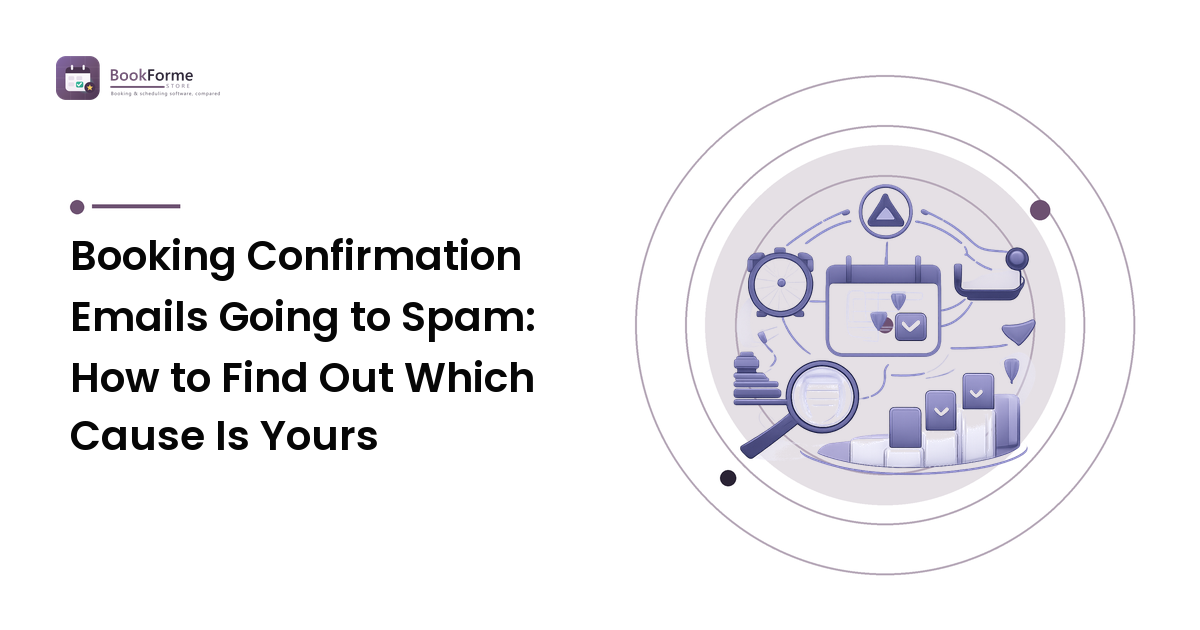
When a customer says the confirmation never arrived, the message was almost certainly sent. What happened next is one of three things, and you cannot fix it until you know which: it never left your booking system, it left and got filtered on the way in, or it went to an address that isn't theirs. Each has a different fix, and the checks that separate them take about fifteen minutes.
Start there rather than with settings. Most people react by rewriting the confirmation message, which addresses the rarest cause and leaves the real one running. The symptom hides, too: for every customer who tells you, several assume the booking failed and stop turning up — which is why this reads as a no-show problem long before it reads as an email problem.
Start here: did the message actually leave?
Every booking tool keeps a record of what it sent. Find a notifications log, message history, or the activity trail on the booking the customer is asking about.
- No record of a send. The message never went — a configuration problem, not a delivery one. Skip to the section on messages that were never triggered.
- Sent, with no further status. It left your system, and the question is what the receiving side did with it.
- Bounced, rejected, or failed. The address is wrong or refusing mail — the easiest of the three to prove.
If the log shows nothing useful, use the customer's evidence instead. Ask them to search their whole mailbox — not just the inbox — for your business name, and to check junk specifically. A message found in junk settles the diagnosis on the spot.
Is it really spam, or just a different tab?
Worth ruling out before you change anything, because these look identical from your side and need opposite responses.
- Junk or spam folder. A filter judged the message. This is a sender-reputation problem, and the rest of this guide is about it.
- A promotions, updates, or other sorted tab. Nothing was filtered; the mailbox simply categorised it. It's delivered and searchable — but a customer who never opens that tab experiences it as missing. Confirmations get sorted this way most often when they look like marketing: heavy images, many links, a promotional footer.
- A corporate quarantine. Business mail systems often hold messages centrally and send a digest instead. The customer may need to release it, and their IT team may need to allow your sending domain. If you sell to businesses, this is a far bigger share of your problem than it is for anyone selling to consumers.
The tell is where the message ended up, which is why "check your junk folder" isn't a brush-off — it's the diagnostic question.
If it's your sending address: the part that decides most of this
This is the most common cause, and it's invisible from your own inbox, because mail from your own system reaches you fine.
Most booking tools send on your behalf. What they put in the "from" line, and whether the receiving server can verify that claim, decides whether you land.
Check first: are you sending as a free consumer address? If confirmations arrive from yourname@ a free webmail domain while a booking platform's servers do the actual sending, receiving systems see a message claiming to come from a provider that never sent it. Consumer mail providers publish strict policies about this, and routine filtering is the result. Two ways out, both offered by most booking tools: send from your own business domain, or send from the platform's verified address with your business name as the display name and your real address as the reply-to.
Then: is your domain authenticated? If you send from your own domain, the receiving server checks published records to confirm the platform is allowed to send for you. Your booking tool documents which records to add; your registrar or host is where you add them. Missing or stale after a platform change, and filtering follows.
Then: has anything changed recently? Confirmations that used to arrive and now don't usually follow a change — a new platform, a new domain, a move to a different mail provider, or a burst of volume from a domain that had never sent much. Sending history is part of how you're judged, and a new domain starts with none.
Also check replies. A "no-reply" sender on a domain that rejects incoming mail looks worse to filters than one that accepts replies, and it costs you every customer who answers the confirmation with a question.
If the address is wrong: typos, autocorrect, and bounces
Easy to prove and easy to underestimate. A booking form takes an address typed once, on a phone, often one-handed, and nothing verifies it.
The signs: a bounce or failure in your log, or a domain that's nearly right — a missing letter, a mistyped provider name.
What actually reduces it:
- Show the address back for confirmation at the last step, large enough to read.
- Ask for a phone number too, so there's a second route to the customer.
- Turn on bounce notifications if your tool offers them. A bounce is the one failure you can catch the same day.
- Follow bounces up by phone. A two-minute call turns a soon-to-be no-show into a confirmed appointment.
If the message was never sent at all
Less common, but it happens quietly after any change to your setup, which is why it belongs with everything else that drifts after setup.
Check in this order: whether that particular service has confirmations enabled at all; whether the template is active rather than saved as a draft; whether a recent integration or plan change switched notifications off; and whether bookings made through one route — a widget, a direct link, a manual entry — behave differently from another. Appointments you add to the calendar yourself very often send nothing, because the system treats them as yours rather than the customer's.
If it's the content of the message
Content matters less than the sender, but it isn't nothing. A confirmation should read as a receipt, not a campaign.
- Keep it mostly text, with the essentials — service, date, time, place, and how to change it — visible without scrolling.
- Use few links. A confirmation needs a reschedule or cancel link and perhaps a map, not your social profiles and a newsletter offer.
- Avoid link shorteners entirely. A shortened link hides its destination, and filters treat it accordingly.
- Match the display name to the business the customer just booked with. If they booked "Rosewood Clinic" and the mail says "BookingApp Notifications", filter and human alike are less sure it's expected.
- Skip the marketing footer on transactional messages, or hold it to one line.
How to test a fix without waiting for the next customer
Don't judge deliverability from your own inbox. Your mail provider already trusts your address, so it proves nothing.
- Make a test booking with an address at a provider your customers actually use, and not the one your business mail runs on.
- Use an account that has never received your mail, so no personal history helps it through.
- Note where it lands: inbox, promotions tab, junk, or nowhere.
- Change one thing, then repeat. Fixing the sender address and the authentication records together tells you the problem is gone, not which change did it.
- Re-test after any platform change, domain change, or template rewrite.
Two clean tests to different providers is a reasonable place to stop.
What to do while you're still fixing it
Email isn't your only channel, and the appointment is what matters:
- Show the confirmation on screen straight after booking, with a date, time and address the customer can screenshot.
- Offer an add-to-calendar option at that moment. A calendar entry survives every mail filter in existence.
- Send a text reminder for high-value or long-lead bookings — different pipe, different failure modes, and reducing no-shows covers where reminders earn their place.
- Say where to look. One line telling customers the confirmation may land in junk, and asking them to mark it safe, costs nothing.
None of that replaces landing in the inbox; it stops a filtering problem costing you appointments while you fix the cause. The whole flow of confirmations, reminders and reschedules is worth reviewing together, which is what the appointment management guide is for.
FAQ
Why do my reminders arrive but the confirmation doesn't?
Usually because they leave by different routes — reminders sent by text, or from a different sender address than the instant confirmation. Compare the sender address on both; if they differ, you've found where the problem lives.
The customer got it, but I didn't get the booking alert. Is that the same problem?
It's the same mechanism aimed at you, and it's often a rule or a shared inbox rather than a filter. Alerts going to an address nobody watches is one of the most common ways bookings get missed entirely.
Does asking customers to add us to their contacts actually work?
For that customer, yes — it's a strong signal to their mail provider and it holds for future messages. It does nothing for the next new customer, so treat it as a patch, not a fix.
Can I keep using a free webmail address as my booking sender?
You can, and it's the likeliest single reason confirmations get filtered when a platform sends on your behalf. Sending from a domain you own, or from the platform's verified address with your reply-to attached, has the biggest effect.
Do text reminders have the same problem?
Different failure modes, not fewer. Texts aren't spam-filtered the same way, but they can be blocked by carrier filtering, especially with shortened links or messages that read like marketing. They're a good second channel, not a guaranteed one.
How long should I wait before assuming a confirmation failed?
Confirmations are near-instant, so more than a few minutes means something is wrong. If a customer calls next day saying nothing arrived, treat it as delivered-and-filtered until the send log says otherwise.
Next step
Make one test booking to an address at a provider you never use, and follow it to wherever it lands — inbox, tab, or junk. That single message tells you which of the three causes you're dealing with, and the fix follows from it. For a booking flow where confirmations, reminders and reschedules are set up to arrive properly from the start, see BookForme Store.